How to Compress a PDF for an Online Form
Reduce a PDF toward a 100KB, 200KB, or custom upload limit and verify every resulting page.
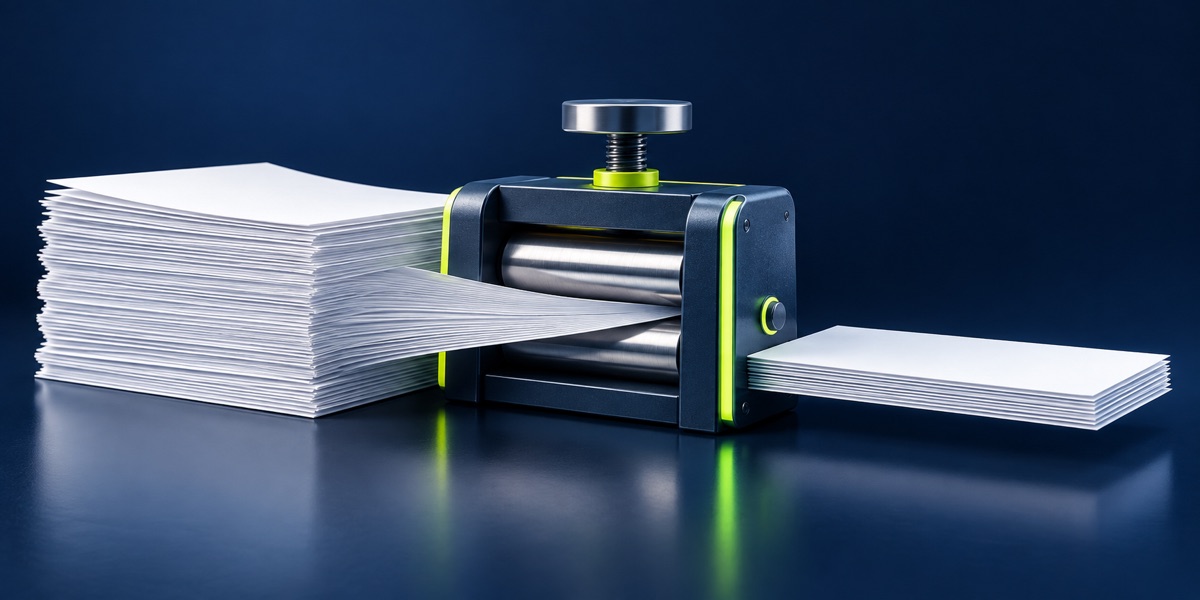
Scanned PDFs can become large because every page contains a high-resolution image. Compression reduces those page images to create a smaller document suitable for upload.
UtilityHub completes this job inside your browser. Your source file is not uploaded to UtilityHub, and the downloaded result is a separate file.
How to do it
- Open the PDF compressor and choose the source document.
- Select 100KB, 200KB, or enter the limit shown by the form.
- Run compression and wait while each page is rebuilt.
- Download and inspect the complete result.
Check the result before uploading
- Every required page is present and readable.
- The final size is below the maximum.
- The portal accepts a rasterised PDF if selectable text is not preserved.
Common problem and fix
A long scan may not reach a very small limit without visible quality loss. Remove unnecessary pages, rescan at a practical resolution, or use the highest limit permitted by the portal.
Keep the original file
Download the processed file with a clear name, but keep the original in a separate folder. If an application portal changes its dimensions, format, page order, or file-size limit, you can create another version without starting from a lower-quality copy.
Requirements can change
UtilityHub helps prepare files; it does not set the rules of a recruitment board, passport authority, school, employer, or other destination. Always compare the downloaded file with the latest instructions shown on the official portal before final submission.
Frequently asked questions
Why can PDF text become non-selectable?
This compressor rebuilds pages as images to reduce scan size, which can flatten selectable text.
Can every PDF reach 100KB?
No. Page count and visual detail can make some targets impractical without unacceptable quality loss.
Most relevant guides
Selected by shared topic, search intent and connected tools.