How to Convert Images into One PDF
Arrange JPG, PNG, or WebP files in order and combine them into a clean A4 PDF.
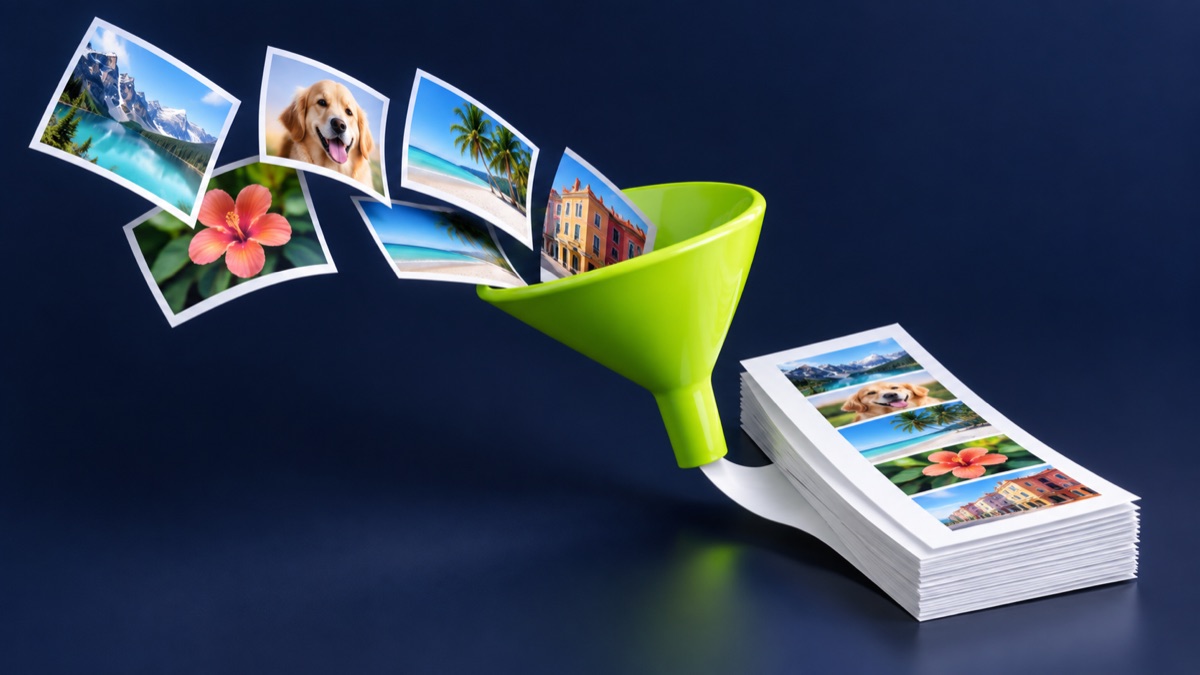
Combining document photographs into one PDF is useful when a portal accepts a single attachment. Correct page order and readable source images matter more than visual decoration.
UtilityHub completes this job inside your browser. Your source file is not uploaded to UtilityHub, and the downloaded result is a separate file.
How to do it
- Add the document images in the order they should appear.
- Review every thumbnail and correct the order before conversion.
- Create the A4 PDF in the browser.
- Open the download and inspect every page before submission.
Check the result before uploading
- No page is missing, duplicated, rotated, or upside down.
- Small text is readable at normal zoom.
- The final PDF remains below any upload-size limit.
Common problem and fix
Dark or angled photographs create hard-to-read PDF pages. Retake the source photo in even light, keep the camera parallel to the document, and crop unnecessary surroundings.
Keep the original file
Download the processed file with a clear name, but keep the original in a separate folder. If an application portal changes its dimensions, format, page order, or file-size limit, you can create another version without starting from a lower-quality copy.
Requirements can change
UtilityHub helps prepare files; it does not set the rules of a recruitment board, passport authority, school, employer, or other destination. Always compare the downloaded file with the latest instructions shown on the official portal before final submission.
Frequently asked questions
Does image order become page order?
Yes. Arrange the images before creating the PDF.
Can I add more than one image?
Yes. The current tool supports up to 12 images in one PDF.
Most relevant guides
Selected by shared topic, search intent and connected tools.