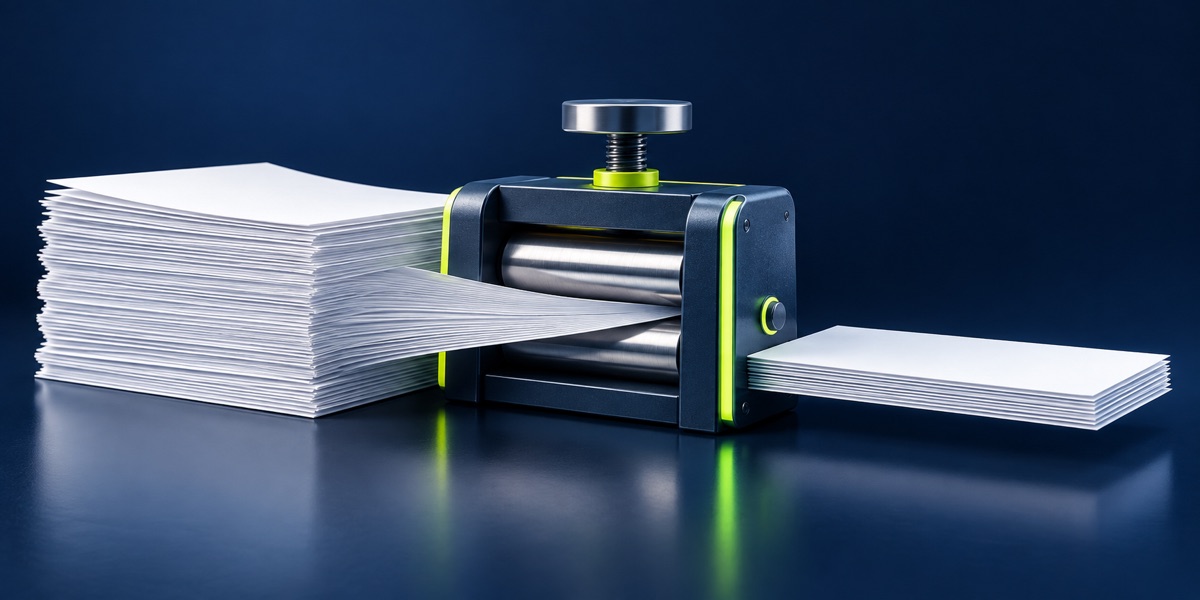
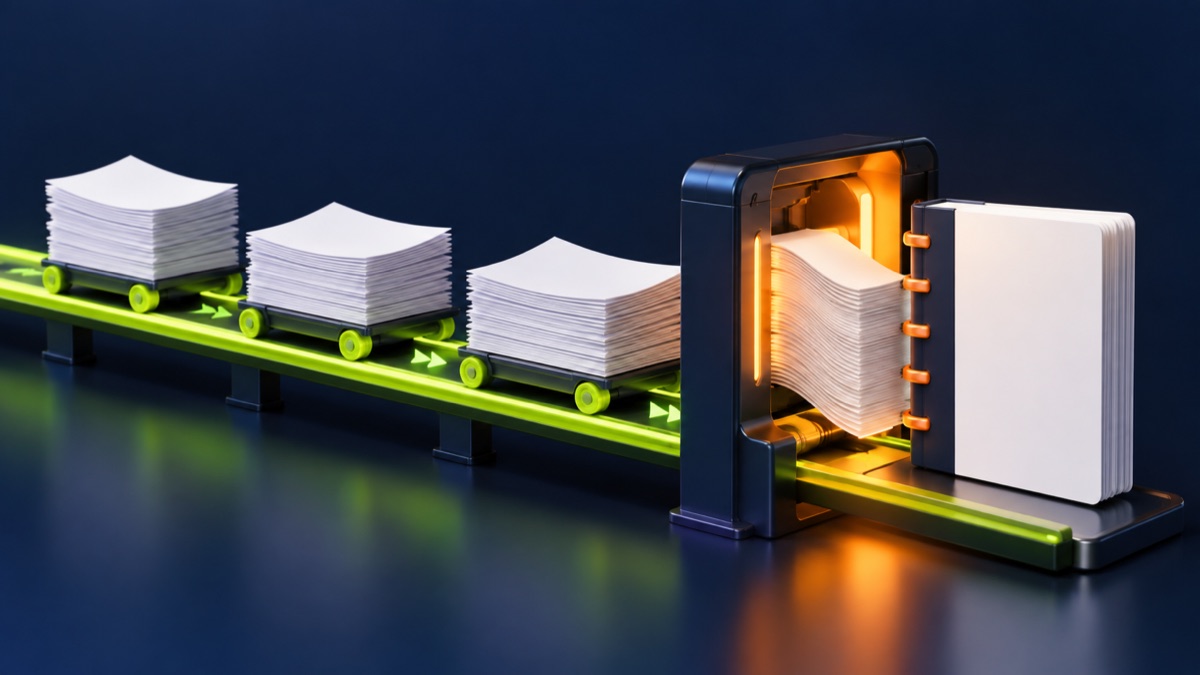
How to Split a PDF and Extract Selected Pages
Keep only the pages you need by entering individual page numbers or page ranges.

PDF splitting is useful when a large document contains only a few pages needed for an application. Page numbers refer to their position in the PDF, which can differ from numbers printed on the page.
UtilityHub completes this job inside your browser. Your source file is not uploaded to UtilityHub, and the downloaded result is a separate file.
How to do it
- Open the source PDF and note the positions of the required pages.
- Enter individual pages or a range such as 2-4.
- Create the extracted PDF.
- Open the download and verify both the first and last page.
Check the result before uploading
- All requested pages are included.
- No confidential or unnecessary page remains.
- The extracted file opens normally before upload.
Common problem and fix
Printed page labels may not match PDF positions because covers and unnumbered pages still count. Use the PDF viewer position when choosing the extraction range.
Keep the original file
Download the processed file with a clear name, but keep the original in a separate folder. If an application portal changes its dimensions, format, page order, or file-size limit, you can create another version without starting from a lower-quality copy.
Requirements can change
UtilityHub helps prepare files; it does not set the rules of a recruitment board, passport authority, school, employer, or other destination. Always compare the downloaded file with the latest instructions shown on the official portal before final submission.
Frequently asked questions
Can I enter several page ranges?
Yes. Use commas between entries, such as 1,3,5-7, when the tool accepts the range.
Does splitting change page quality?
Page extraction copies the selected PDF pages without intentionally rasterising them.
Most relevant guides
Selected by shared topic, search intent and connected tools.