Online Form Photo Rejected? Check These 8 Things
Diagnose a rejected photo upload by checking file size, dimensions, format, crop, clarity and the current portal instructions.
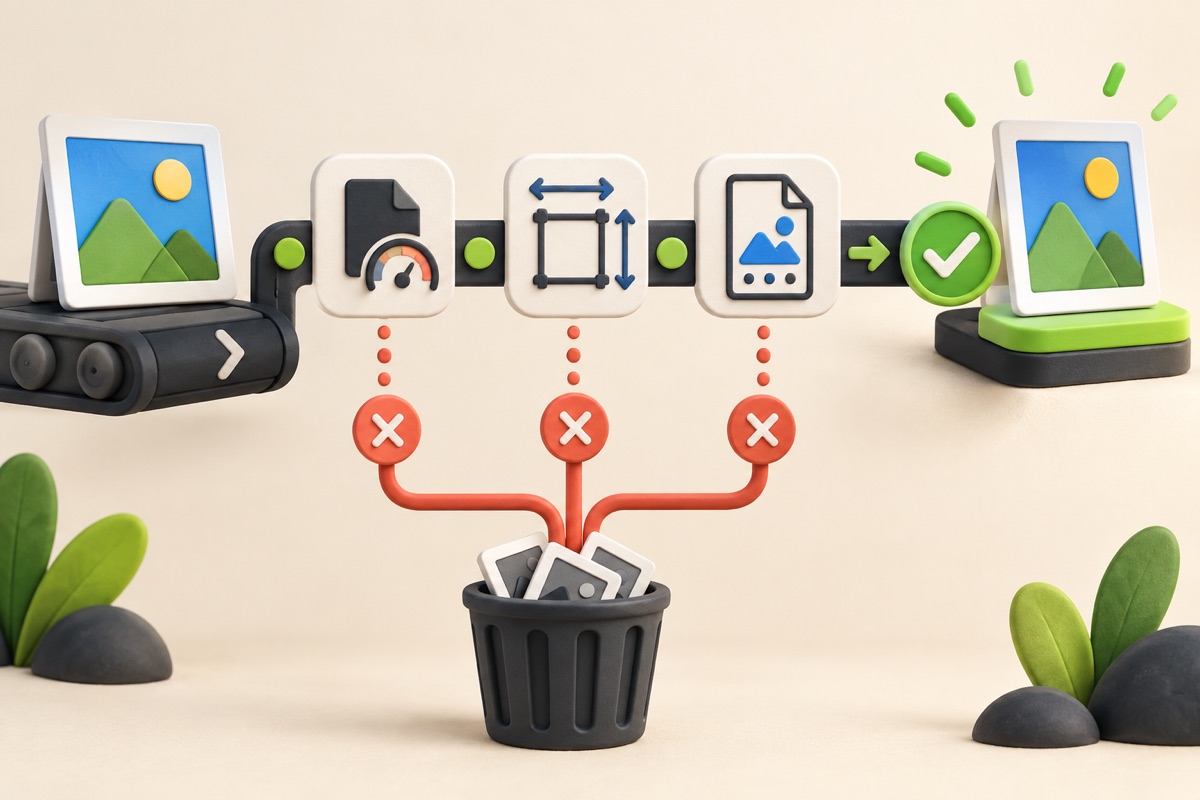
A portal can reject a photograph even when it looks correct on screen. File size is only one rule: dimensions, format, filename, crop, clarity, background and the portal session can also affect acceptance. Read the exact error message before changing the file.
UtilityHub completes this job inside your browser. Your source file is not uploaded to UtilityHub, and the downloaded result is a separate file.
How to do it
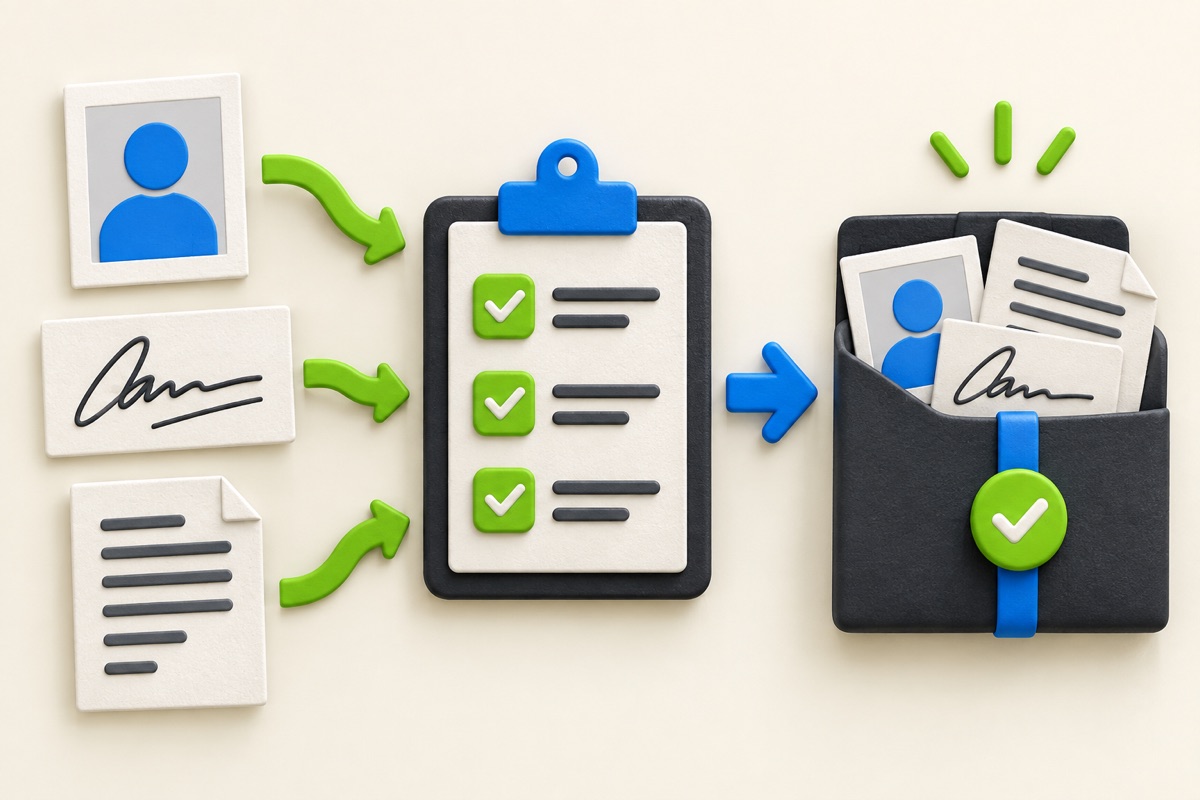
- Read the current portal notice and write down its maximum and minimum KB values, pixel dimensions, accepted format and filename rules.
- Check the original file type and dimensions before compressing it.
- Use the dedicated 20KB or 50KB compressor only when that matches the stated maximum.
- Open the downloaded result, confirm the face is clear and upload that new file rather than the original.
Check the result before uploading
- The file extension is accepted and matches the actual file format.
- The file size sits inside any stated minimum and maximum range.
- Width, height, crop, background and visible face follow the official example.
- The filename contains no unsupported symbols and the final file opens normally.
Common problem and fix
If a correctly prepared file is still rejected, start a fresh portal session and try a simple filename such as photo.jpg. Do not repeatedly compress the same output: return to the original file, apply the required crop and dimensions, then compress once.
Keep the original file
Download the processed file with a clear name, but keep the original in a separate folder. If an application portal changes its dimensions, format, page order, or file-size limit, you can create another version without starting from a lower-quality copy.
Requirements can change
UtilityHub helps prepare files; it does not set the rules of a recruitment board, passport authority, school, employer, or other destination. Always compare the downloaded file with the latest instructions shown on the official portal before final submission.
Frequently asked questions
Why is my photo rejected when it is below the KB limit?
The portal may also validate dimensions, format, minimum size, filename, crop or other photo rules. Compare every requirement with the downloaded file.
Should I keep compressing until the portal accepts it?
No. Repeated compression can damage clarity without fixing a dimension, format or crop problem. Diagnose the failed requirement first.
Most relevant guides
Selected by shared topic, search intent and connected tools.