Photo, Signature and Document Upload Checklist
Prepare the three common parts of an online application without mixing originals, processed files or portal requirements.
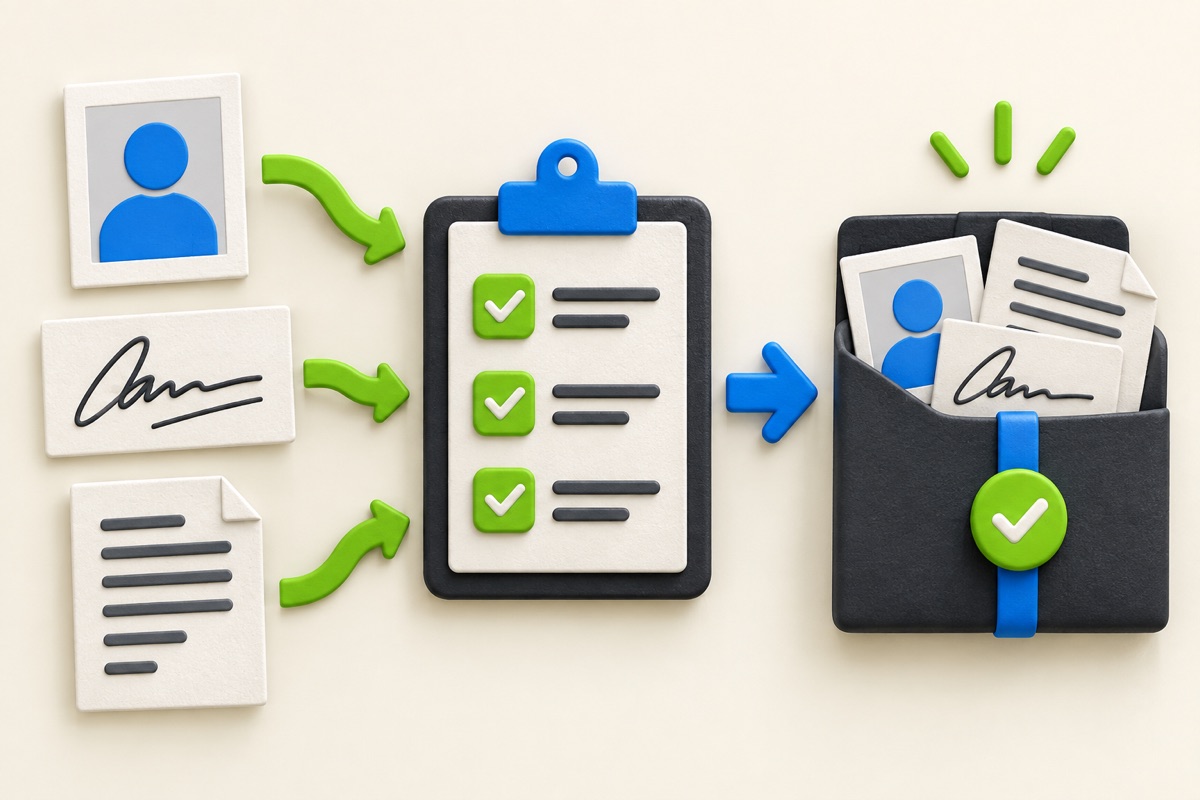
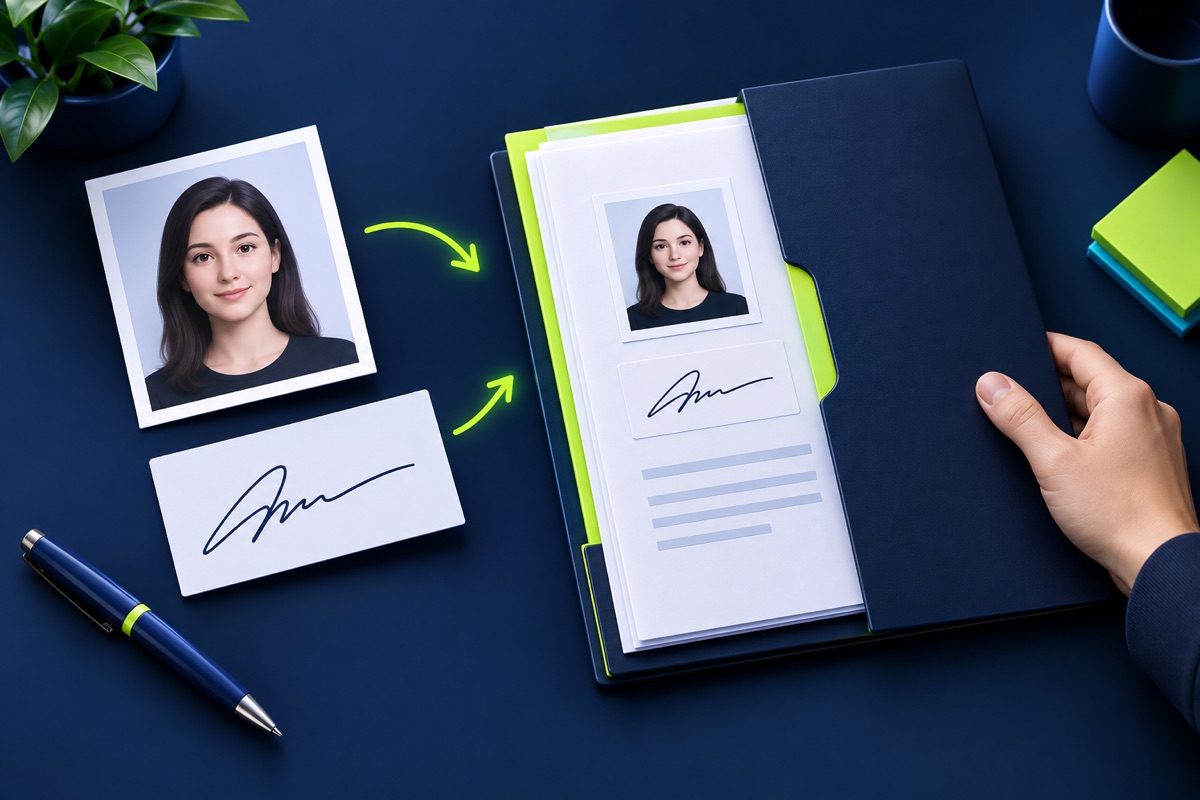
Online applications often ask for a portrait, signature and one or more documents. Treat each upload as a separate specification. A correct photograph does not prove that the signature or PDF meets its own size, format and dimension rules.
UtilityHub completes this job inside your browser. Your source file is not uploaded to UtilityHub, and the downloaded result is a separate file.
How to do it
- Create a folder for the application and keep unchanged originals inside a clearly named originals subfolder.
- Write down the current rule for every upload field before processing any file.
- Prepare the portrait and signature, then open both downloads at full size.
- Create, merge or compress the document PDF only after confirming its page order and readability.
Check the result before uploading
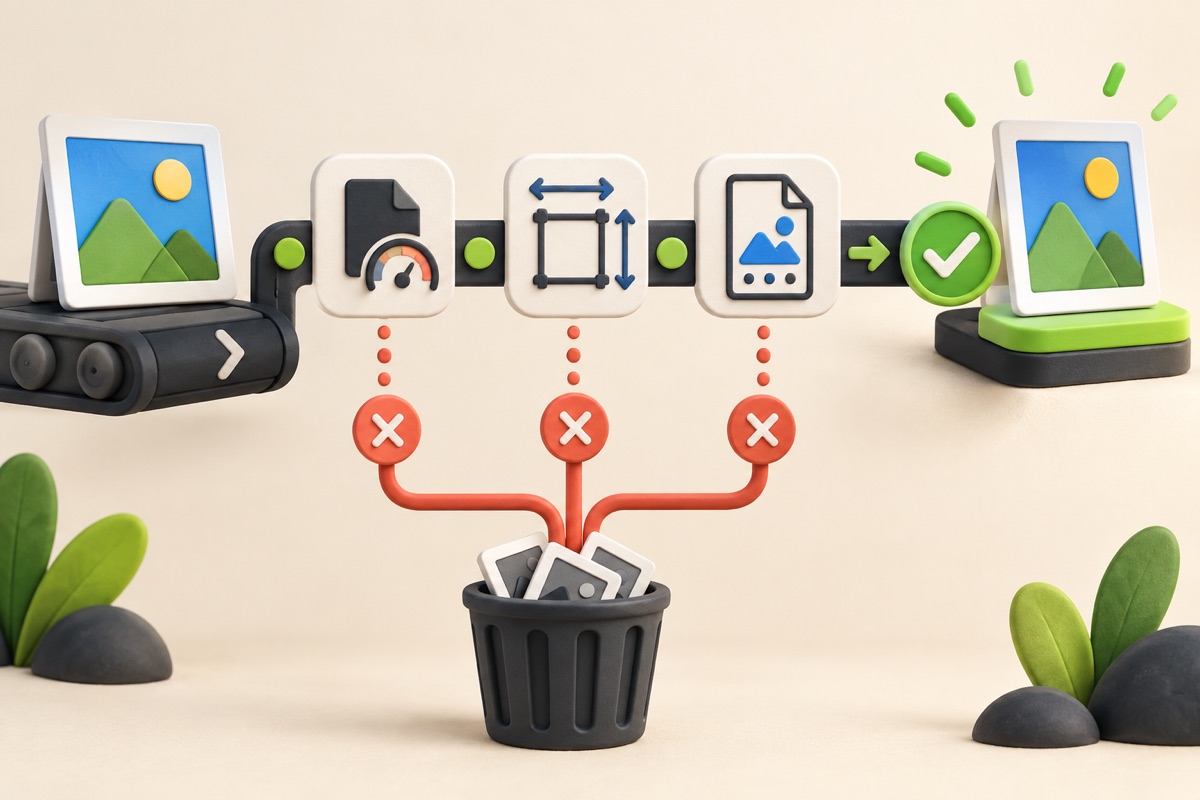
- Photo: correct crop, background, dimensions, format and KB range.
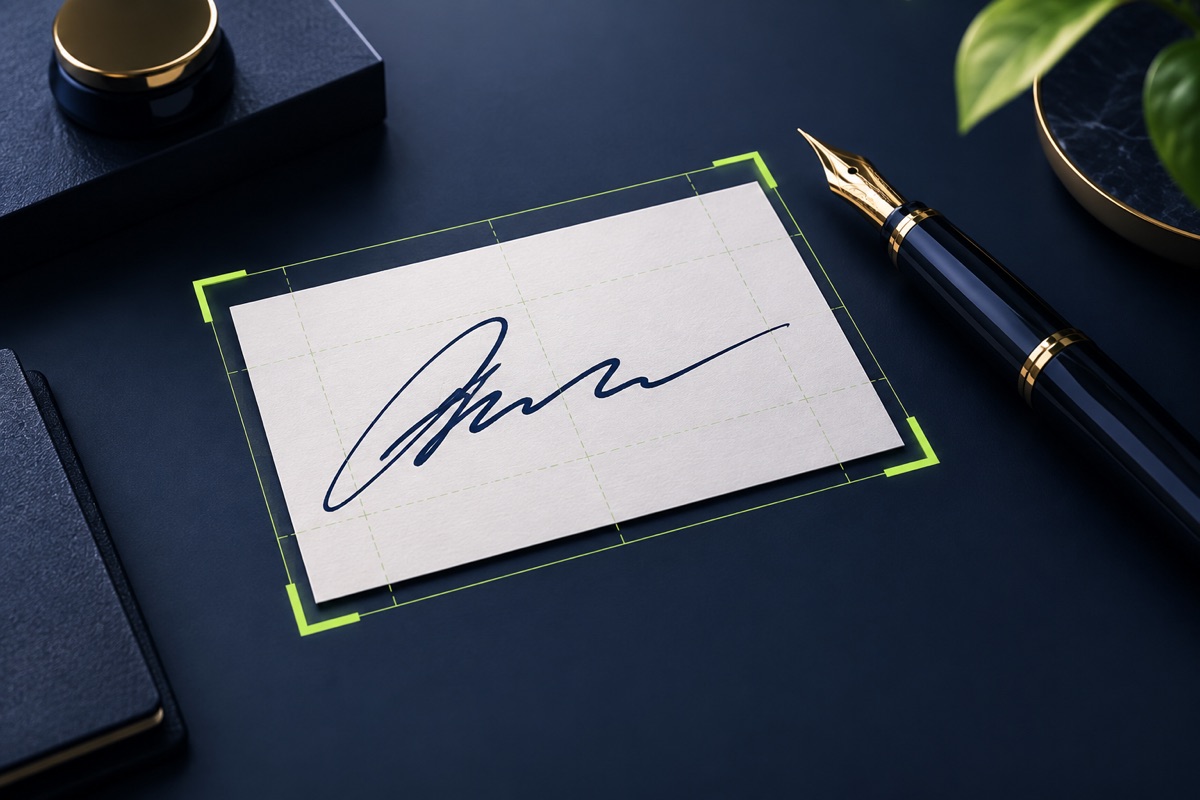
- Signature: every stroke visible, clean background and no clipped edge.
- Documents: correct pages, order, orientation, readability and final size.
- Files: simple names, no swapped uploads and a saved copy of every submitted version.
Common problem and fix
The most common workflow mistake is processing several files and then uploading the wrong copy. Use descriptive names such as final-photo.jpg, final-signature.jpg and final-certificates.pdf, and open each file immediately before selecting it in the portal.
Keep the original file
Download the processed file with a clear name, but keep the original in a separate folder. If an application portal changes its dimensions, format, page order, or file-size limit, you can create another version without starting from a lower-quality copy.
Requirements can change
UtilityHub helps prepare files; it does not set the rules of a recruitment board, passport authority, school, employer, or other destination. Always compare the downloaded file with the latest instructions shown on the official portal before final submission.
Frequently asked questions
Can one preset satisfy every application portal?
No. Presets are convenient starting points, but each portal can set different size, dimension, format and content rules.
Should I delete the original files after processing?
No. Keep the originals so you can create a new version if the destination changes a requirement or rejects an output.
Most relevant guides
Selected by shared topic, search intent and connected tools.