How to Resize an Image to Exact Pixel Dimensions
Set a precise width and height while controlling aspect ratio, format, and quality.
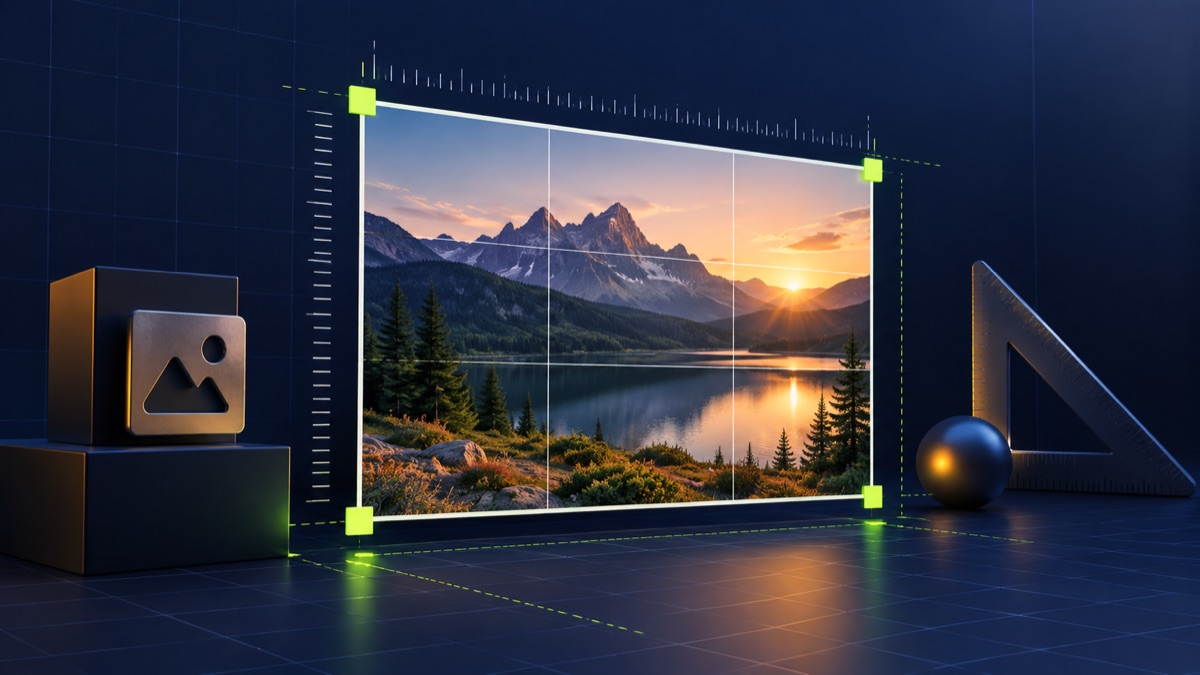
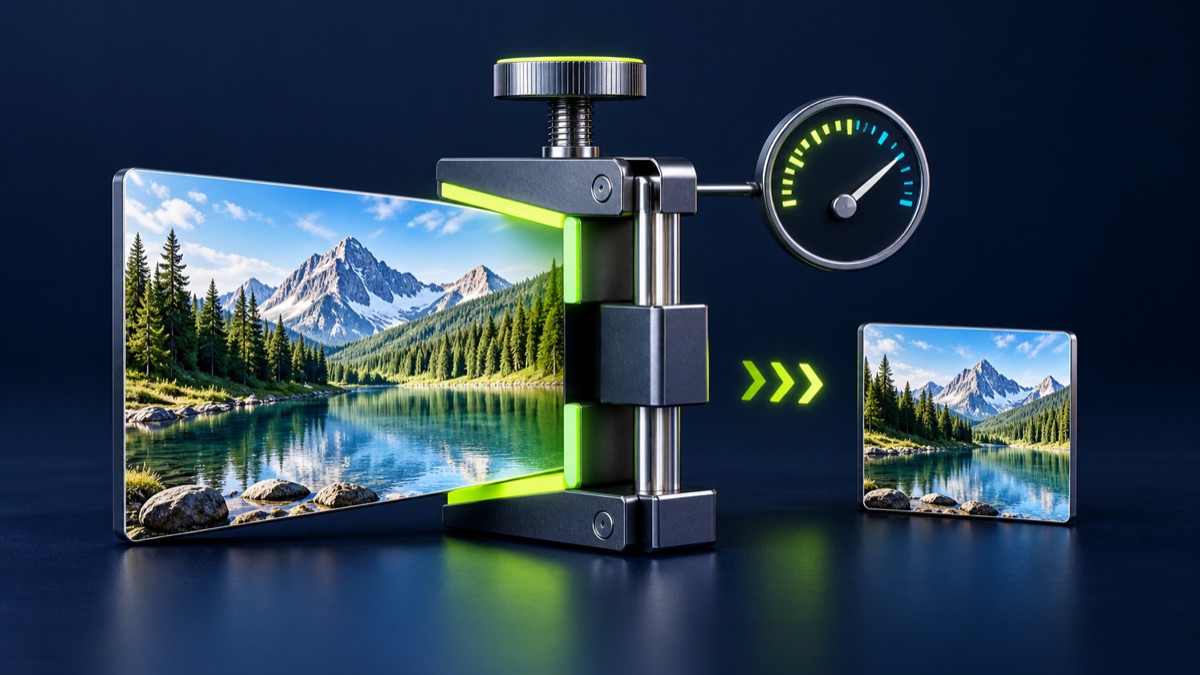
Pixel resizing changes the number of image pixels, not merely its displayed size. It is useful when a website requires a width and height such as 600 × 600 pixels.
UtilityHub completes this job inside your browser. Your source file is not uploaded to UtilityHub, and the downloaded result is a separate file.
How to do it
- Open the image and read its current width and height.
- Enter the required dimensions.
- Keep aspect ratio enabled unless the destination requires a specific shape.
- Choose JPG, PNG, or WebP and download the resized copy.
Check the result before uploading
- The output width and height match the requirement.
- The subject does not look stretched or squeezed.
- Transparent areas are preserved only when the chosen format supports them.
Common problem and fix
Entering a width and height with a different aspect ratio can distort the image. Crop to the target shape first, or keep aspect ratio enabled and accept a calculated second dimension.
Keep the original file
Download the processed file with a clear name, but keep the original in a separate folder. If an application portal changes its dimensions, format, page order, or file-size limit, you can create another version without starting from a lower-quality copy.
Requirements can change
UtilityHub helps prepare files; it does not set the rules of a recruitment board, passport authority, school, employer, or other destination. Always compare the downloaded file with the latest instructions shown on the official portal before final submission.
Frequently asked questions
What is aspect ratio?
It is the relationship between width and height. Preserving it prevents stretching.
Does increasing dimensions improve quality?
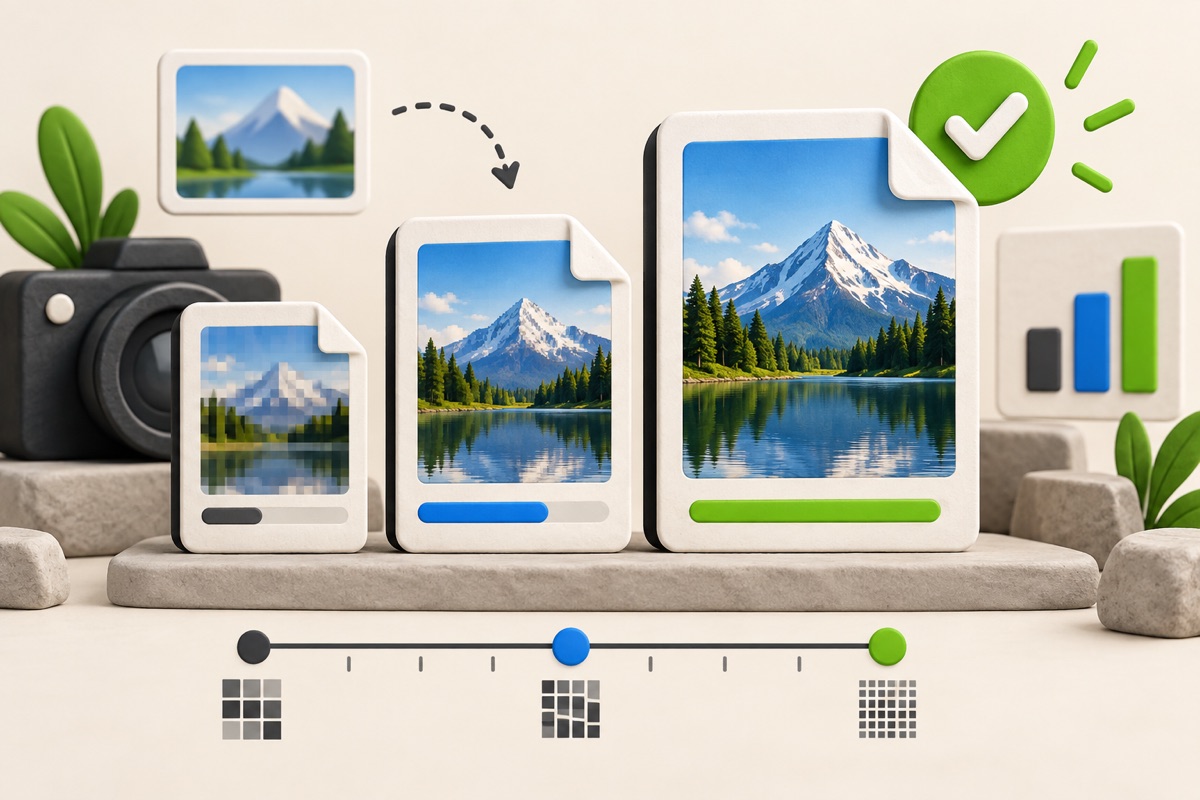
No. Enlarging creates more pixels but cannot restore detail missing from the source.
Most relevant guides
Selected by shared topic, search intent and connected tools.