How to Compress an Image to 100KB Online
Compress a JPG, PNG or WebP image below a 100KB upload limit while checking dimensions, format and visible quality.

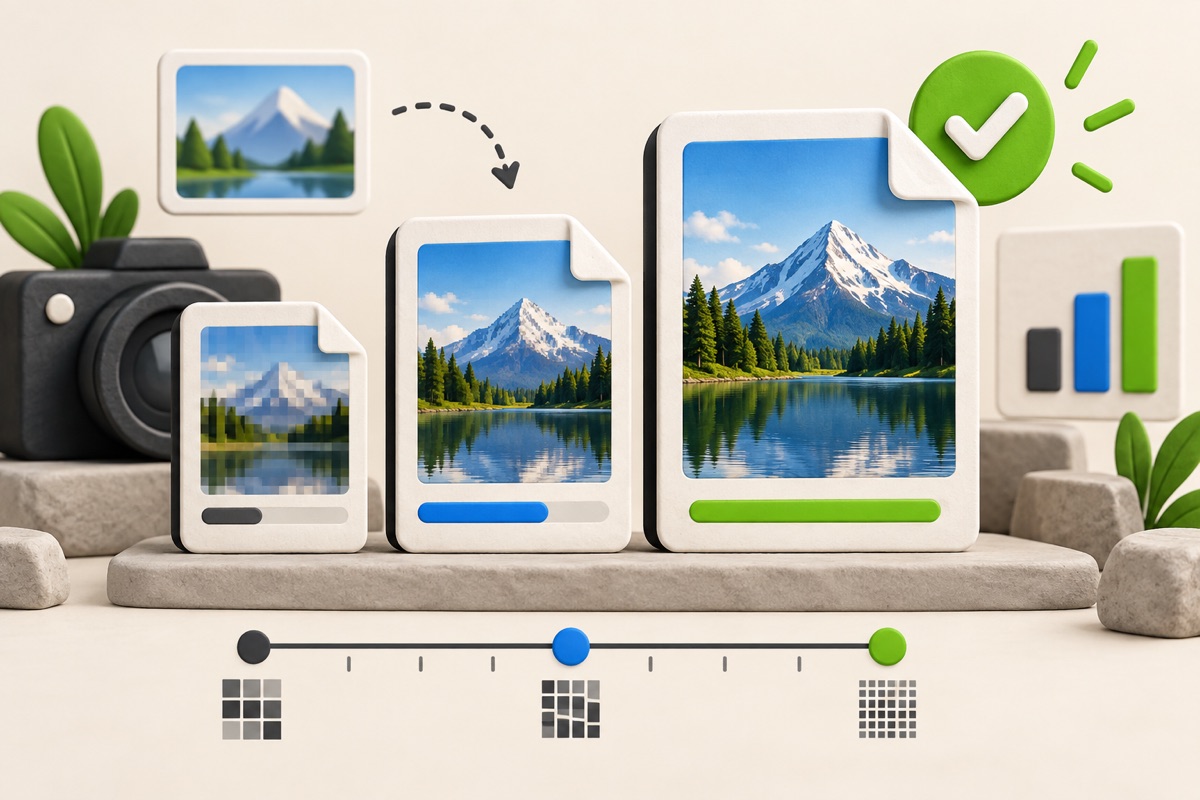
A 100KB target normally allows more detail than 20KB or 50KB. Start from the original image so the compressor can preserve the strongest possible result.
UtilityHub completes this job inside your browser. Your source file is not uploaded to UtilityHub, and the downloaded result is a separate file.
How to do it
- Select the 100KB compressor and open the source image.
- Run the preset and wait for the output estimate.
- Inspect faces, text, and edges in the preview.
- Download the processed file when both size and clarity are acceptable.
Check the result before uploading
- The file is no larger than the portal limit.
- The orientation and crop are correct.
- The selected file format is permitted.
Common problem and fix
If the file is already smaller than 100KB, additional compression is unnecessary unless you need a different format. Uploading the existing compliant original may retain more detail.
Keep the original file
Download the processed file with a clear name, but keep the original in a separate folder. If an application portal changes its dimensions, format, page order, or file-size limit, you can create another version without starting from a lower-quality copy.
Requirements can change
UtilityHub helps prepare files; it does not set the rules of a recruitment board, passport authority, school, employer, or other destination. Always compare the downloaded file with the latest instructions shown on the official portal before final submission.
Frequently asked questions
How do I decrease a photo size to 100KB?
Start with the original, use the 100KB preset and check the downloaded size. If the image becomes unclear, resize its pixel dimensions before another compression pass.
Can a file be smaller than 100KB?
Yes. A maximum limit permits smaller files unless the destination separately states a minimum.
Why is a file under 100KB still rejected?
The upload may also require specific pixel dimensions, format, filename or a minimum size. Read the complete portal requirement before changing the file again.
Does this work with WebP?
The tool can read WebP, JPG, and PNG and creates a broadly compatible compressed JPG.
Most relevant guides
Selected by shared topic, search intent and connected tools.